
install_wordpress_themes
How to install WordPress themes
Many people find WordPress themes from the internet on a general search or via a specific theme site. When this is the case, you will need to upload and install the theme into WordPress to see it work.
- Download the theme (it should download as a zip file (needs to be a zip file!!!)
- Log into your WordPress Dashboard
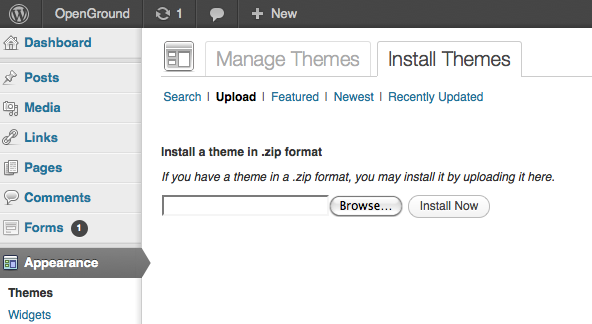
- Choose Appearance > Themes
- Click Install Theme tab
- Click Upload tab
- Browse to where you saved that theme zip file
- Choose and press upload
- When uploaded you'll be given a chance to preview it
- Note that a preview may look slightly off if certain of the custom options aren't chosen
- in other words, you can probably ignore a preview that looks like it's missing stuff, you'll fill it in later
- Press the Activate Theme button
- Browse to your main site URL (outside the dashboard) and view your site.
Notes
Themes can often be customized via the widgets panel under appearance (in the wp dashboard). you may have specific theme options that now show up in your dashboard. Some theme companies have dozens or even possible a hundred differnt theme configurations from colors and modules that are visible and not.
If you do not like your theme and want to return to another, go back to Appearance > Themes and choose one of your previous themes to activate. As long as a theme isn't currently installed you can delete it from the system.
install_wordpress_themes.txt · Last modified: by 127.0.0.1